Warning: Undefined variable $comment_tag in /afs/usgs.gov/www/tst/htdocs/wp-content/plugins/last-updated-shortcode/last-updated-shortcode.php on line 59
Last updated: November 30, 2022 at 19:00 pm PST
To help monitor and track progress towards Workstation Reduction Ratio goals, the DOI Systems and Client Cabs have approved the use of the machineRole attribute to classify computer objects in Enterprise Active Directory. The machineRole attribute has a numeric value. A number has been assigned to each of the approved classifications. The purpose of this page is to document the computer classification values and definitions, and demonstrate how to modify the attribute on active directory computer objects. For additional guidance on general scenarios found in the USGS, download USGS Workstation Scenarios document below.
USGS Workstation Scenarios v0.4 (download) – The purpose of this document is to provide guidance on some general scenarios that are found within the USGS. This matrix will not reflect all situations, but the scenarios listed can be used as a guideline for more complex situations.
Computer Classification Values
Classification Title : (machineRole attribute Value) – Description of the Classification
General – Assigned : (none/<not set>) – Non-server computer used for basic office automation and program area work. This system is general in function and has no alternative classification. This system is assigned to a specific user.
General – Not Assigned : (1) – Non-server computer used for basic office automation and program area work. This system is general in function and has no alternative classification. This system is not assigned to a specific user. This system assigned for shared or pooled use.
General – Thin : (2) – Non-server computer that has been made ‘Thin’ by using a variety of technologies that reduce the overall footprint of the system and resources. The classification of Thin can include thin clients, virtual machines, or other similar technologies.
Control/Management : (3) – Non-server computer which may or may not be directly attached to scientific equipment, devices, sensors and data collection devices. This system may be used for Supervisory Control and Data Acquisition (SCADA), to control facility hardware such as security/video systems, phone systems, property management systems, laboratory equipment and other types of appliance equipment. Additional this system may be connected to scientific equipment for data collection and analysis (both internal to an office and external environment systems taken out into the field to monitor and collect mission data). This system may be a device used to monitor the IT infrastructure (Security, Telecommunications, etc). This system may be vendor and/or role specific and therefore require special consideration with regards to device’s operating system, configurations, security, patching and support. This system is not assigned to a specific user, but assigned to a function.
GIS/Modeling/Data Processing : (4) – Non-server computer used for GIS/Modeling/Data Processing work 75% of the time. This category also includes modeling clusters or grid computing devices. (The system may be shared or assigned to a specific user.) Note: Due to FAQs about this category, USGS added the term “Data Processing” to DOI’s definition to help clarify when to assign this category to USGS systems.
Law Enforcement (LE) : (5) – Non-server computer system assigned for use by Law Enforcement personal and\or LE programs for use in performance or LE duties.
Incident Response : (6) – Non-server computer system assigned to an Incident Response Team or Incident Response Individual for use in temporary incident response situations. This category does not apply to non-server computer systems used in permanent facilities such as Incident Command Centers, dispatch offices, cache locations, fire stations or other such facilities.
Modify machineRole for One Computer
- Open Active Directory Users and Computer (ADUC) as an -ou account or someone with delegated privileges.
- (To install ADUC see Remote Server Administrations Tools for Windows 10.)
- Navigate to the location of the computer object. Right-click on the object and choose Properties.

- Click on the Attribute Editor Tab. Navigate to and select the machineRole attribute and click .

- Enter the appropriate value in the Integer Attribute Editor input window. The default value is <not set>. The value should not be changed on systems classified as General – Assigned. To change a value back to <not set> click . In this example, the system is a shared Dell Precision used exclusively for running models, so the value 4 is entered.


- Click to close the Editor window. Click to close the Computer Properties window.
View machineRole for Multiple Computers
The USGS SysAdmin Tools (USAT) PowerShell module can be used to view, add, and edit the Active Directory machineRole attribute. To learn more about and install USAT, please go the TST Scripting and Automation page
Once you have installed USAT, using the Get-ADMachineRoles or it’s alias ‘gadmr’ cmdlet will search your OU for computer objects and create a .csv file named ADMachineRoles.csv and populate it with the following attributes for each object it finds: Name, Description, and CurrentMachineRole.
Computers that have the machineRole value set to null or <not set> will have no value in the machineRole column.
There is also a column for NewMachineRole. The NewMachineRole can used to add or edit an existing machineRole attribute. Possible values are 1-6, or <not set>.

Procedure for viewing machineRole attributes and creating ADMachineRoles.csv
- In USAT, navigate to a directory where you want to store the ADMachineRoles.csv file and issue the following command:
Get-ADMachineRoles
- Once you execute the command, you should get the following output:

- The output can then be read in excel or a text editor.
Modify machineRole for Multiple Computers
To add or edit the machineRole attribute for multiple computers the USAT Set-ADMachineRoles cmdlet can read the ADMachineRoles.csv that contains a list of of computer names and their corresponding machineRole values. It searches your OU for each computer object in the list, and if found, updates the machineRole attribute with values set in the NewMachineRole column.
In order to change the values USAT must be run with -ou credentials or a credential that has been delegated privileges to modify Active Directory object attributes.
The machineRole attribute will only be modified if the NewMachineRole column is populated a valid value (1-6 or <not set>).
Procedure for modifying machineRole attributes
- First follow the procedures for viewing machineRole attributes and creating ADMachineRoles.csv
- Open the ADMachineRoles.csv in Excel
- In the NewMachineRole column, add the machineRole attributes to the computer objects you wish to change. Only objects which have a value in the NewMachineRole column will be changed. If you need to reset a computer objects value, put ‘<not set>’ in the NewMachineRole column for that computer object.

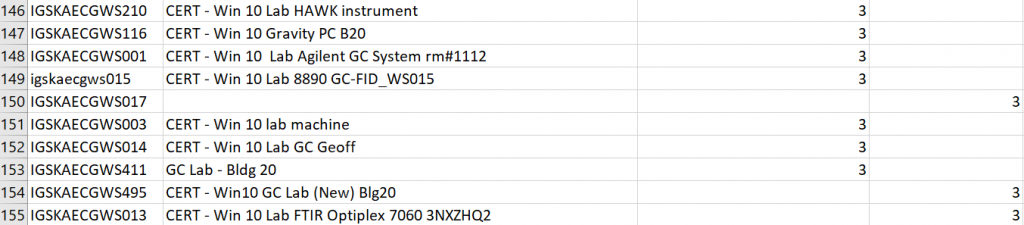
- Save the ADMachineRoles.csv and close it.
- In USAT, navigate to a directory where the saved ADMachineRoles.csv file is stored and issue the following command:
Set-ADMachineroles .\ADMachineRoles.csv
- You should see something like the following output:
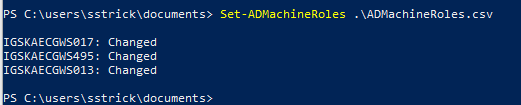
- Confirm the results in ADUC or issuing another GetADMachineRoles command to verify it updated as expected. In this example, igskaecgws017, igskaecgws495, and igskaecgws013 had a value of 3 added to the machineRole attribute. Computer objects with unpopulated values in the NewMachineRole column remain unchanged. For example; igskaecgws219, igskaecgws116, igskaecgws001, igskaecgws015, igskaecgws003, igskaecgws014, and igskaecgws411, all retain their initial machineRole attribute value of 3.